


AI Video Photo Generator Videa
4.41.97K Reviews
App Specs
- Version
- 1.16.0
- Updated On
- License
- Free
- Downloads
- 1,000,000+
- Developer
- PURE APPS
- Categories
- Art & Design
- Platform
- Android, iOS
Screenshots
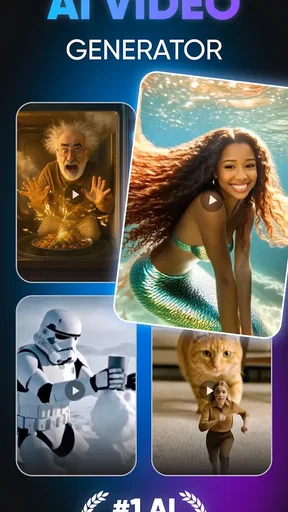
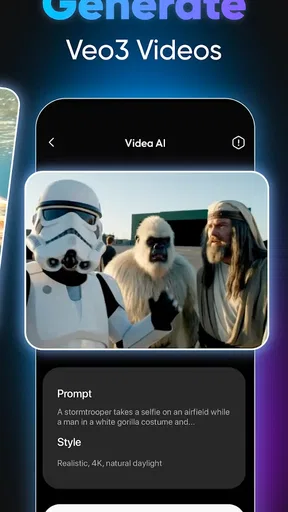
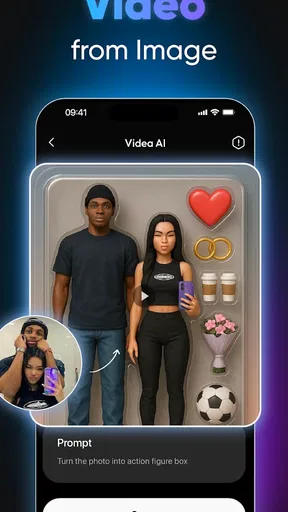
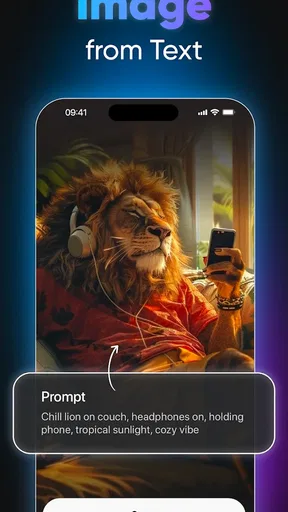
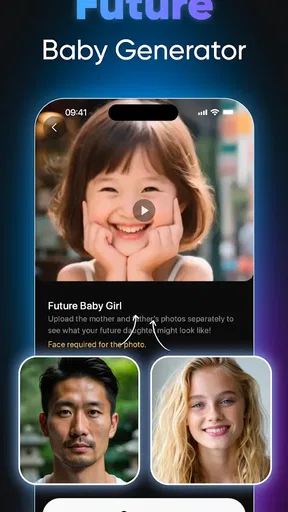
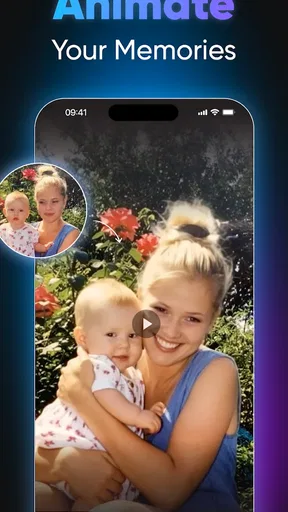
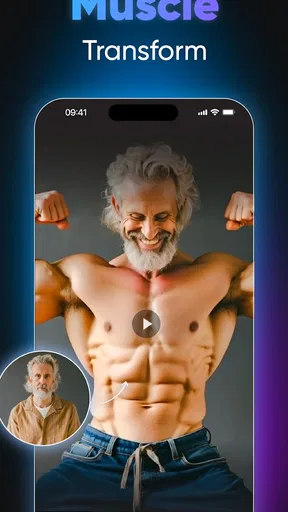
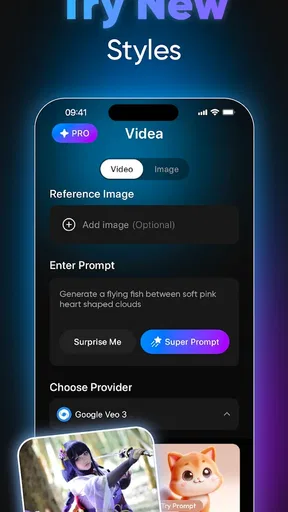
 Analysis by AppCompare
In a shared home, a video app can quickly become more than one person’s creative tool: someone may want to make a birthday clip, another may be experimenting with effects, and a third may simply want to trim a phone video. I’d approach Videa: AI Video Maker, Effects as a convenient option for quick, visually playful projects, while keeping expectations grounded. AI effects can help a short clip feel more finished, but they do not replace careful editing when timing, privacy, or fine control really matters.
A shared phone calls for a little planning
On a family tablet or a phone passed around the household, it helps to decide who is using the app and which footage they intend to work with before starting a project. That is practical rather than a special app feature: personal clips can be easy to mix up when several people share one device. I’d keep each person’s source videos organized in the device’s own photo library and check that the right clips are selected before editing or sharing.
This setup also makes a difference when a project takes more than one sitting. Agreeing on a simple naming habit for exported videos, such as including the occasion or creator’s initials, can make it easier to find the finished file later. I would not assume that a shared device automatically keeps each person’s work separate; treat project access and the device itself as shared unless you have arranged otherwise.
Coordinate the edit before passing the device
A useful household workflow is to settle the purpose of the video first: a private memory, a school presentation, or a public social post all call for different choices. One person can select the footage, while another can review the sequence and check that the chosen effects suit the moment. That small pause helps avoid the common problem of adding a dramatic visual treatment to a clip whose main value is simply being clear and personal.
If several people are contributing, I’d make one person responsible for the final export and sharing decision. That keeps the last step deliberate, especially if the video includes other people. Before handing the device to someone else, it is worth checking whether the project is still open and whether the next person is looking at the intended material. These are ordinary shared-device habits, not a substitute for any dedicated account or access controls.
Age context and trust matter
The app is rated for Everyone, and its art-and-design focus makes it approachable for casual creative experiments. Still, an age label is not a replacement for an adult’s judgment about what a child records, edits, or posts. I’d encourage younger users to work with clips they have permission to use and to ask before sharing anything that shows friends, classmates, or family members.
Because this is an AI video creation app, it is sensible to review the result rather than treating an automatic effect as an unquestionable improvement. A filter can change the mood of a person’s face or a familiar place, and the finished video may look different from the original footage. If the project is intended for a private family archive, that may be harmless fun; if it represents someone publicly, I’d check that they are comfortable with the edit.
Worth Reading Before You Choose

EA SPORTS FC Mobile 26 Is a Bigger Football Game, but It Takes Time

Flipboard Shows What News Apps Must Do Beyond the Feed

Switching to Android Auto Means Rethinking Your Driving Routine

Google Calendar Makes a Crowded Week Easier to Manage

Ludo King Makes the Most of the Minutes Between Plans

Baby Panda World Brings Quick Play to Modern Phones, but Its Game Library Feels Busy
Getting Started with Videa
The first thing you'll notice when you open Videa: AI Video Maker, Effects is its clean and intuitive interface. The developers have done a stellar job in ensuring that even a newbie can navigate the features without breaking a sweat. As soon as you launch the app, you're greeted with a simple tutorial that walks you through the basics. Trust me, you'll be editing like a pro in no time.
Once you're all set up, you can dive straight into creating your first video. The app supports importing clips from your device, and with just a few taps, you can start piecing together your masterpiece. The drag-and-drop functionality is super handy, making it easy to arrange clips in any order you like.
Unleashing Creativity with AI Effects
Now, this is where the magic happens. The app is packed with a wide array of AI-powered effects that can transform your videos from bland to fabulous. Want to add some cinematic flair? The app's AI effects can mimic popular film styles effortlessly. Feeling adventurous? Dive into its vast library of animations and transitions.
One of my favorite features is the automatic scene detection. The app intelligently identifies key moments in your video and suggests effects that would enhance them. It's like having a creative director on standby, ready to elevate your content.
Sound and Music Integration
No video is complete without the right soundtrack, and Videa knows this well. The app offers a robust library of royalty-free music tracks that you can easily sync with your videos. The audio editing tools are surprisingly versatile, allowing you to trim, fade, and adjust the volume with precision.
For those who love a personal touch, you can also record voiceovers directly within the app. This feature is perfect for creating vlogs or instructional videos where narration is key. The quality is crisp, and the process is straightforward, making it a breeze to add that personal touch.
Exporting and Sharing Made Easy
Once you've crafted your video to perfection, sharing it with the world is just a tap away. Videa supports exporting in various resolutions, ensuring your video looks great whether it's viewed on a smartphone or a big screen. The app also integrates seamlessly with popular social media platforms, allowing you to share your creations instantly.
For those who prefer to keep their videos private, the app offers secure storage options. You can back up your projects to the cloud, ensuring your work is safe and accessible from any device. It's a thoughtful feature that adds an extra layer of convenience.
What works well, and where I’d be cautious
For a realistic everyday use, imagine filming a family member blowing out candles, then turning the raw clip into a short keepsake. I’d import the video, arrange the moments so the action reads clearly, and try an effect only after the basic sequence works. A light touch is usually the safer choice: if a filter competes with the expression or makes the scene feel unlike the occasion, I’d remove it. The point is to make the memory easier to enjoy, not to bury it under decoration.
That order is useful for social content too. First make sure the story makes sense without effects; then use a transition or visual treatment to draw attention to a particular beat. Scene suggestions can provide a starting point, but I would compare them against the actual clip rather than accepting every recommendation. Automatic detection can be convenient when footage has obvious changes, while a quiet, continuous shot may need a human decision about where the emphasis belongs.
Compared with a conventional timeline editor, this app’s appeal is its guided, effect-led approach: it can help a beginner get from clips to a more stylized result without needing to learn a dense set of controls first. A basic trimming tool is still the better choice when all you need is to cut off the beginning or end of a recording. A desktop editor is more appropriate when a project depends on exact frame timing, layered sound, or detailed color work. I see Videa as a quicker creative route, not a universal replacement for those tools.
One practical tip is to listen to the soundtrack after the visuals are in place. Music that feels lively on its own can overwhelm dialogue or a voiceover, so I’d lower it and replay the clip before exporting. If narration matters, record it after deciding the sequence; that makes it easier to keep the spoken explanation aligned with what viewers see. For a simple montage without speech, the music can instead provide a rhythm for choosing where clips begin and end.
Choosing the right project and checking the result
The app is a better fit for short personal edits, playful experiments, and creators who want to test a visual idea quickly than for people who need repeatable, precise production controls. It can also suit a household that wants to turn a few phone clips into a shareable occasion video without first learning professional software. I’d skip it if you mainly need meticulous editing, have a strict workflow that depends on exact settings, or do not want an effect-driven process at all.
Before sharing, watch the exported video from beginning to end rather than checking only the opening frame. Look for an effect that appears at an awkward moment, an abrupt cut, or a music level that makes speech hard to hear. Then confirm the destination is appropriate: sending a file to a social platform is a different decision from keeping a private copy. This final review is especially worthwhile when several people have worked on the same device, since the person exporting may not be the person who selected every clip.
Videa is free to download, with optional in-app purchases ranging from around three dollars to around one hundred and twenty dollars per item. I’d try the free experience on a small, disposable project before paying for anything, and make sure the purchase is useful for the kind of videos you actually plan to create. That is a sensible way to judge whether its particular effects and workflow earn a place in your regular editing routine.
Availability and household verdict
PURE APPS develops this art-and-design app, which has a 4.6 average from around thirty-six thousand ratings and more than one million installs. It was released on February 2, 2025, and its current version is 1.11.1; it requires Android 7.0 or later. Those details make it easy to check whether an Android device is in range, while the Everyone age rating gives households a clear starting point for deciding whether the app suits their use. The rating itself, of course, does not settle how a family should handle filming or sharing.
My household verdict is that Videa makes the most sense when one person takes responsibility for the edit and everyone agrees on what the finished video is for. Its accessible, visual approach can turn casual footage into something more lively, and the music and effects give beginners room to experiment. The trade-off is that a shared device needs sensible coordination, and a polished-looking effect does not guarantee a polished story. If you want quick creative options and are willing to review the result carefully, it is worth trying; if control and precision come first, I’d choose a more traditional editor.
Final Thoughts
In a digital age where content is king, having the right tools at your disposal is crucial. Videa: AI Video Maker, Effects stands out as a powerful yet user-friendly app that caters to both beginners and seasoned editors. Its combination of AI-driven features and intuitive design makes video editing not only accessible but also incredibly fun.
If you're looking to elevate your video content without diving into complex software, give Videa a try. It's a pocket-sized powerhouse that will have you creating eye-catching videos with ease. So, go ahead, unleash your creativity, and let Videa be your guide in the world of video editing.
Pros
- Intuitive interface for easy editing.
- Wide range of AI effects available.
- Exports videos in high quality.
- Regular updates enhance features.
- Supports multiple video formats.
Cons
- In-app purchases can be costly.
- Occasional lag on older devices.
- Limited free version features.
- Requires internet for full functionality.
- Ads can be intrusive during editing.
FAQs for AI Video Photo Generator Videa
What is Videa: AI Video Maker, Effects?
Videa: AI Video Maker, Effects is an innovative app designed to simplify the video editing process using artificial intelligence. It offers a range of effects and editing tools to enhance your videos, allowing users to create professional-looking content with minimal effort. It's available for both Android and iOS platforms.
How user-friendly is Videa for beginners in video editing?
Videa is designed with user-friendliness in mind, making it an excellent choice for beginners. The app provides intuitive controls and a straightforward interface, allowing users to easily navigate through different editing options. Additionally, it offers tutorials and tips to help new users get started quickly and efficiently.
What kind of video effects are available in Videa?
Videa offers a wide variety of video effects, including filters, transitions, text overlays, and music integration. Users can choose from pre-set themes or customize their own effects to suit their creative vision. The app's AI capabilities also suggest effects based on the video's content, ensuring a seamless editing experience.
Are there any in-app purchases or subscriptions required?
While Videa can be downloaded for free, it does offer in-app purchases and subscription options. These may include premium effects, additional features, and ad-free usage. Users can choose a subscription plan that suits their needs, with options typically ranging from monthly to yearly payments.
Does Videa support high-resolution video exports?
Yes, Videa supports high-resolution video exports, allowing users to create videos in quality up to 4K. This feature is ideal for those looking to share their content on platforms that support high-definition video. However, higher resolution exports might be part of the premium features available through in-app purchases.


